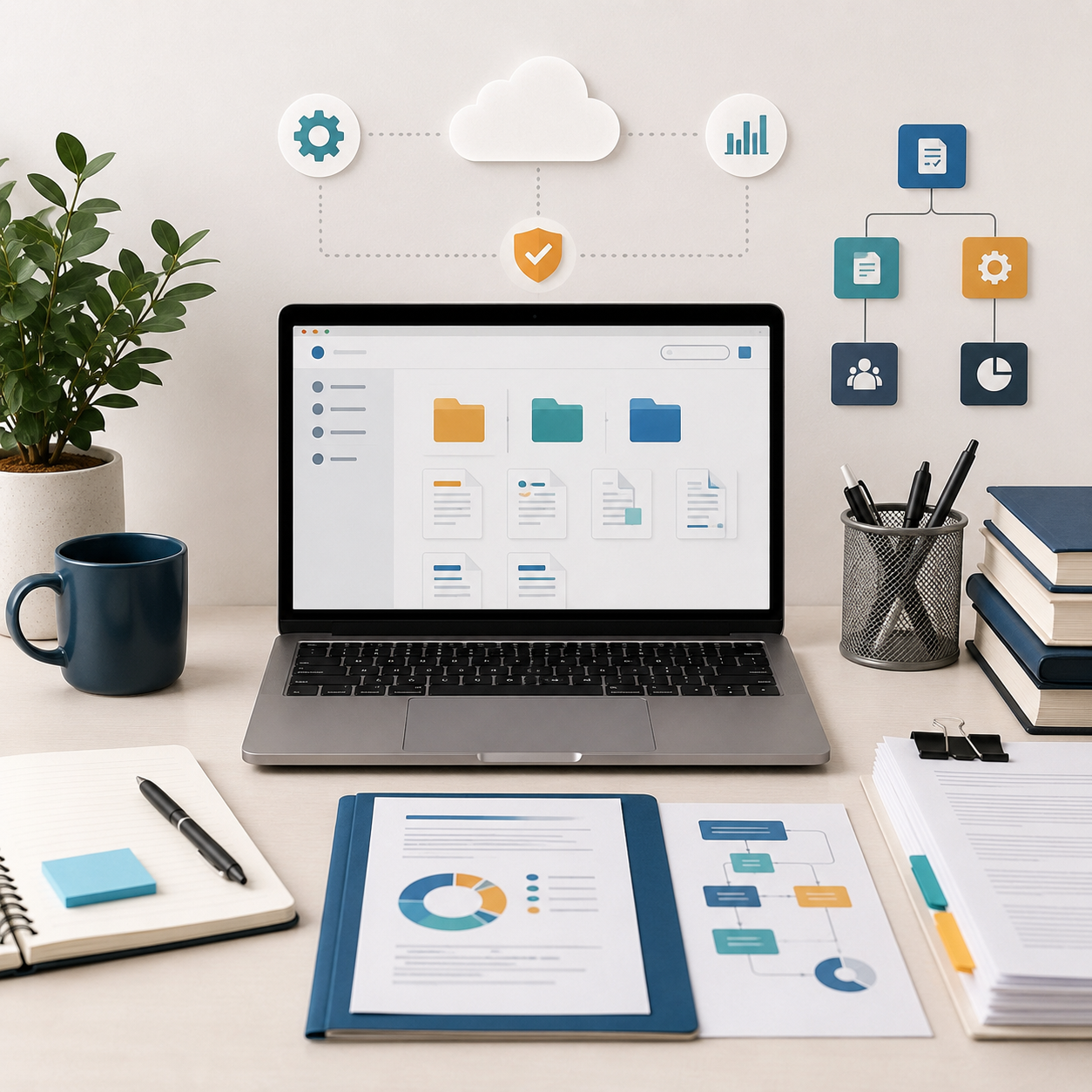

Knowing how to merge, split, and organize PDF files can save time, reduce confusion, and help you keep documents clean before sending, printing, uploading, or storing them. Whether you are preparing invoices, contracts, scanned papers, study materials, reports, or client documents, a well-structured PDF is easier to read and safer to share.
The challenge is that many people treat PDFs as final files that cannot be changed. In reality, you can combine multiple PDFs, extract only the pages you need, remove duplicates, reorder sections, rotate pages, compress large files, and create a more professional document without starting from zero.
The best approach depends on the type of file, the level of privacy required, and the device you are using. A simple school assignment may be fine with a basic built-in tool, while a confidential legal, financial, or business document may require desktop software, local processing, password protection, or professional handling.
This guide explains the practical steps in plain English, including when to merge files, when to split them, how to organize pages correctly, what mistakes to avoid, and how to choose a safe tool for the job.
By the end, you will understand not only which buttons to click, but also how to prepare PDF files in a way that looks organized, works across devices, and avoids common problems such as missing pages, wrong order, oversized files, or exposed personal data.
Important note: before uploading private, financial, medical, legal, or identity-related documents to any online PDF tool, check the platform’s privacy policy, file deletion rules, and security practices. For sensitive documents, a trusted desktop tool or official software is usually safer than an unknown browser-based service.
Why PDF Organization Matters More Than Most People Think
A PDF is often the final version of a document. People use it because it keeps layout, fonts, pages, images, and formatting more consistent across devices. That makes PDF useful for applications, business documents, manuals, scanned records, contracts, and forms.
However, a PDF can quickly become messy when pages are scanned in the wrong order, files are combined without checking the sequence, or extra pages are left inside the document. In many cases, the problem only appears when someone else opens the file and notices that a page is missing, upside down, duplicated, or placed in the wrong section.
Good PDF organization helps the reader understand the document without asking for clarification. It also helps reduce file size, avoid unnecessary attachments, protect private information, and make the document easier to print or archive.
| PDF Task | Best Use Case | Important Care |
|---|---|---|
| Merge PDFs | Combine several related files into one complete document. | Check the page order before saving the final version. |
| Split PDFs | Create smaller files from one large document. | Make sure each new file still has the necessary context. |
| Extract pages | Reuse only selected pages from a larger PDF. | Avoid exposing pages that contain private information. |
| Reorder pages | Fix scanned documents or organize sections logically. | Review page numbers and section flow after moving pages. |
| Rotate pages | Correct sideways or upside-down scanned pages. | Rotate only the affected pages, not the entire document. |
How to Merge, Split, and Organize PDF Files Safely
The safest way to merge, split, and organize PDF files is to start with a copy of the original document. This may sound simple, but it prevents one of the most common problems: saving over the only clean version of a file and realizing later that the wrong pages were deleted or moved.
Before you edit anything, create a folder for the project. Put the original files in one subfolder and the edited versions in another. This keeps your workflow clear and makes it easier to go back if something goes wrong.
In practice, professional-looking PDF organization usually follows a simple order: prepare the files, review the pages, make the edits, save a working version, check the final document, and only then share it. Skipping the final review is where many mistakes happen.
- Create a backup copy before editing any PDF.
- Rename files clearly before merging them.
- Check page order, page orientation, and missing pages.
- Remove duplicate, blank, or unnecessary pages.
- Use trusted software for sensitive documents.
- Save the final version with a clear file name.
Best Methods to Merge PDF Files Into One Document
Merging PDFs means combining two or more files into a single PDF. This is useful when you have separate documents that belong together, such as a cover letter, resume, certificates, invoices, receipts, scanned forms, or report sections.
The main rule is to arrange the files in the correct order before creating the final document. Many tools allow you to drag and drop files or page thumbnails. Take advantage of that preview, because file names alone can be misleading.
For example, a file named “Document 1” may not actually be the first page of the final PDF. A better naming system would be “01 Cover,” “02 Application Form,” “03 Proof of Address,” and “04 Supporting Documents.” This reduces the chance of sending a confusing file.
-
Collect all PDFs in one folder.
Place every file you want to merge in a single folder. This prevents you from accidentally selecting an outdated version from another location.
-
Rename the files in reading order.
Use numbers at the beginning of each file name, such as 01, 02, and 03. This makes the order clear before you open the PDF tool.
-
Open a trusted PDF editor or built-in PDF tool.
Use a reliable desktop application, operating system feature, or well-known online tool. For private documents, prefer local software instead of uploading files to unknown websites.
-
Add the files to the merge area.
Select the PDFs you want to combine. If the tool supports drag and drop, arrange the files visually before continuing.
-
Preview the page order.
Open the thumbnail view and check whether the first page, last page, and important sections appear in the correct sequence.
-
Remove unnecessary pages.
Delete blank scans, duplicate pages, instructions, or old versions before saving. This keeps the final document cleaner.
-
Save with a clear file name.
Use a name that explains the purpose of the document, such as “Complete-Application-Packet.pdf” instead of “merged-final-new2.pdf.”
-
Open the final file before sharing.
Review the saved PDF from beginning to end. This is the final check for missing pages, wrong order, unreadable scans, or accidental private information.
When and How to Split a PDF Into Smaller Files
Splitting a PDF means taking one large document and dividing it into smaller files. This is useful when you need to send only one section, separate chapters, reduce attachment size, remove unrelated pages, or organize a scanned document into individual records.
There are different ways to split a PDF. You can split by page range, file size, bookmarks, chapters, or selected pages. The right method depends on what you want the new files to represent.
A common mistake is splitting a PDF too aggressively. For example, sending only page 5 of a form may not make sense if page 4 explains the context. Always make sure the new file still works as a standalone document.
| Split Method | When to Use It | What to Check |
|---|---|---|
| By page range | When each section has a known start and end page. | Confirm that the first and last pages are included. |
| By selected pages | When you only need a few specific pages. | Check that selected pages do not expose extra data. |
| By file size | When an upload portal has a size limit. | Make sure the split does not break important sections. |
| By bookmarks | When a structured PDF already has chapters or sections. | Review bookmark accuracy before relying on it. |
| Extract as separate files | When each page needs to become its own PDF. | Use clear names so the files do not become confusing. |
How to Organize PDF Pages Like a Professional
Organizing PDF pages is not only about moving pages around. It is about making the document easy to follow. A professional-looking PDF usually has a logical beginning, complete middle sections, and a clean ending.
Start by viewing page thumbnails. This gives you a quick visual map of the document. You can spot blank pages, upside-down scans, repeated sections, missing pages, and pages that look out of place.
During the process, check the document as a reader would. Ask whether the first page explains what the file is, whether the sections appear in the right order, and whether the ending feels complete. This simple review often catches problems that automated tools cannot detect.
- Open the PDF in thumbnail view before editing.
- Move pages only after checking their content.
- Rotate sideways scans before saving the final file.
- Delete blank pages that do not serve a purpose.
- Keep related pages together, especially forms and attachments.
- Review the final PDF on a different device if possible.
Choosing the Right Tool for PDF Merging, Splitting, and Organizing
There is no single best PDF tool for every situation. The best option depends on your device, budget, file size, privacy needs, and how often you work with PDFs.
Built-in tools can be enough for basic tasks. For example, some operating systems include PDF preview or print features that help with simple page handling. Professional PDF software is better when you need advanced tools, batch processing, OCR, secure redaction, form handling, password protection, or reliable business workflows.
Online PDF tools are convenient, but they require more caution. They may be fine for public documents, simple worksheets, or non-sensitive files. They are not always the best choice for passports, IDs, contracts, tax files, medical documents, bank statements, or private company files.
| Tool Type | Advantages | Limitations |
|---|---|---|
| Built-in PDF viewer | Free, simple, and already available on many devices. | May have limited editing, splitting, or compression features. |
| Professional desktop editor | More control, better security options, and advanced page tools. | May require a paid subscription or installation. |
| Online PDF tool | Fast, convenient, and works from a browser. | Privacy depends on the service, upload rules, and file deletion policy. |
| Open-source desktop tool | Useful for local merging, splitting, and reordering without uploading files. | Interface and support may vary depending on the project. |
| Mobile PDF app | Helpful for quick edits, scans, and page adjustments on the go. | Small screens make page review easier to miss. |
Common Mistakes That Ruin PDF Files
One of the most common mistakes is editing the original file without a backup. If the tool saves changes automatically, you may not notice that the original version has been changed until later.
Another frequent problem is trusting the file order without previewing the document. Merged PDFs can look correct by file name but still contain pages in the wrong order, especially when scans, downloads, and renamed files are mixed together.
A more serious mistake is uploading sensitive files to unknown websites. Even if a tool looks professional, you should check whether the service explains how files are stored, processed, deleted, and protected. When in doubt, use a local tool.
| Common Mistake | Possible Result | Better Practice |
|---|---|---|
| No backup copy | The original file may be overwritten or damaged. | Duplicate the PDF before making changes. |
| Wrong page order | The reader may misunderstand the document. | Use thumbnail preview before saving. |
| Uploading private files anywhere | Personal or business data may be exposed. | Use trusted local tools for sensitive documents. |
| Deleting pages too quickly | Important context may be removed. | Review the document after deletion. |
| Using vague file names | Final versions become hard to identify. | Use clear names with dates, purpose, or version numbers. |
How to Keep PDF Files Clean, Searchable, and Easy to Share
A clean PDF is not just visually organized. It should also be easy to find, open, read, and share. That means using good file names, reasonable file size, correct page orientation, and readable scans.
If you are working with scanned documents, check whether the text is searchable. Some scanned PDFs are just images inside a PDF wrapper. In that case, optical character recognition, often called OCR, may be needed if you want people to search, copy, or select text.
For sharing, avoid sending one huge PDF when the recipient only needs a small section. Splitting the file can make upload faster and reduce confusion. However, if the recipient needs the full context, a well-organized merged PDF may be better.
- Use descriptive file names instead of random download names.
- Keep the final file size suitable for email or upload portals.
- Check whether scanned text is readable and searchable.
- Remove unused pages before compressing the file.
- Avoid password protection unless the recipient knows how to open it.
- Keep one archived copy of the complete original document.
When to Get Professional Help or Use an Official Source
Most basic PDF tasks are simple enough for regular users. You can merge, split, rotate, and reorder many files without technical help. However, some situations deserve extra caution.
If the PDF is part of a legal process, government submission, medical record, business contract, tax document, loan application, or compliance workflow, avoid guessing. A small editing mistake can create confusion or cause a document to be rejected.
You should also seek help when a PDF has security restrictions, digital signatures, form fields, redactions, accessibility requirements, or archival standards. In these cases, editing the file incorrectly may remove important features or make the document unreliable.
Conclusion
Learning how to merge, split, and organize PDF files gives you more control over documents that often need to look professional, complete, and easy to understand. The key is to work from a backup, use thumbnail previews, check the final order, and save clear versions.
For everyday files, a built-in tool or simple PDF editor may be enough. For confidential, legal, financial, medical, or business documents, use trusted software and avoid uploading sensitive files to unknown online tools.
The best next step is to create a simple PDF workflow: prepare your files, edit copies, review the final document, and keep an original backup. If the file involves signatures, official forms, security restrictions, or compliance requirements, confirm the process with the relevant support team, software documentation, or official source.
FAQ
1. What does it mean to merge PDF files?
Merging PDF files means combining two or more separate PDFs into one document. This is useful when different files belong to the same purpose, such as a resume with certificates, a report with attachments, or several scanned pages from one form. The most important part is checking the order before saving. A merged PDF should read naturally from the first page to the last. It is also a good idea to remove blank pages, duplicates, and unrelated documents before creating the final version.
2. What does it mean to split a PDF?
Splitting a PDF means dividing one larger PDF into smaller files. You might split a document by page range, selected pages, file size, or bookmarks. This is helpful when you only need to send one section of a large document or when an upload portal has a file size limit. Before splitting, check that each new file still makes sense on its own. Removing too much context can make the document confusing for the person receiving it.
3. Is it safe to use online PDF tools?
Online PDF tools can be safe for simple, non-sensitive documents, but they are not always the best choice for private files. Before uploading anything, check whether the service explains how files are stored, protected, and deleted. Avoid unknown tools for passports, IDs, contracts, tax papers, bank statements, medical records, or confidential business files. For sensitive documents, a trusted desktop application or official software is usually safer because the file can remain on your device.
4. Can I merge PDFs without losing quality?
In many cases, merging PDFs does not reduce quality because the pages are simply combined into a new file. Quality problems usually happen when the tool compresses images, converts pages, or recreates the PDF using lower settings. To avoid this, choose a tool that lets you preserve original quality, especially for scanned documents, images, signatures, or detailed forms. After merging, open the final PDF and zoom in on important pages to check whether text and images are still clear.
5. Why are my PDF pages in the wrong order after merging?
PDF pages often end up in the wrong order because the files were added in the wrong sequence or because file names were not clear. For example, “scan1” may not be the first page if scans were created at different times. The safest method is to rename files with numbers before merging, such as 01, 02, and 03. Then use thumbnail preview inside the PDF tool to confirm the page order before saving the final document.
6. Can I remove pages from a PDF?
Yes, most PDF editors allow you to remove pages from a PDF. This is useful for deleting blank pages, duplicate scans, outdated information, or sections that do not need to be shared. Before deleting anything, make a copy of the original file. Some tools save changes automatically, and you may not be able to recover deleted pages easily. After removing pages, review the document again to make sure the remaining content still flows correctly.
7. What is the difference between splitting and extracting PDF pages?
Splitting usually means dividing a PDF into multiple smaller files based on a rule, such as page ranges, size, or bookmarks. Extracting means selecting specific pages and creating a new PDF from only those pages. Extraction is better when you need a few exact pages from a large document. Splitting is better when the whole document needs to be divided into organized sections. In both cases, always check whether the new file contains enough context for the recipient.
8. Can I organize PDF pages on a phone?
Yes, many mobile PDF apps allow you to merge, split, rotate, delete, and reorder pages. This can be convenient when you need to make a quick edit or combine scanned pages from your phone. The main limitation is screen size. It is easier to miss wrong page order, small text problems, or duplicate pages on a phone. For important documents, review the final PDF on a tablet, laptop, or desktop before sending it.
9. Why is my merged PDF file too large?
A merged PDF may become too large because it contains high-resolution scans, images, unnecessary pages, embedded fonts, or multiple documents that were not compressed. Before compressing, remove pages you do not need. Then use a trusted compression tool that keeps the text readable. Be careful with strong compression, because it can make scanned documents blurry. If the PDF is for official use, readability is more important than making the file as small as possible.
10. Can I reorder pages inside a PDF?
Yes, many PDF tools allow you to reorder pages using thumbnail view. You can drag pages into a new position, move sections, place attachments after the correct form, or fix scanned pages that were captured out of order. After reordering, do not rely only on the thumbnails. Open the document normally and read through the main pages. This helps confirm that page numbers, section titles, and supporting documents still appear in the correct sequence.
11. Do PDF edits affect digital signatures?
PDF edits can affect digital signatures. In many cases, changing pages, merging files, splitting a signed document, or modifying content may invalidate or alter the signature status. If a PDF is digitally signed, treat it carefully and avoid editing it unless you know the rules for that document. For legal, business, or official files, confirm with the sender, receiving organization, or software documentation before making changes. It may be better to keep the signed PDF unchanged and attach supporting files separately.
12. What is the best file name for an organized PDF?
A good PDF file name should be clear, specific, and easy to recognize later. Avoid names like “final2,” “scan_new,” or “document edited.” Better examples include “Rental-Agreement-Signed.pdf,” “Invoice-2026-ClientName.pdf,” or “Application-Packet-Complete.pdf.” For work projects, adding a date or version can help, such as “Project-Proposal-v03.pdf.” Clear names reduce confusion, especially when several people are reviewing or uploading the same document.
Editorial note: This article is for educational purposes and is intended to help readers organize PDF files more safely and efficiently. For documents involving legal validity, official submissions, digital signatures, confidential data, or compliance rules, always confirm the correct process with the relevant organization, software provider, or qualified professional.
Official References
- Adobe Acrobat Help — Combine files into one PDF
- Adobe Acrobat Help — Split PDFs
- Adobe Acrobat Help — Extract pages from PDFs
- Apple Support — Combine PDFs in Preview on Mac
- ISO — ISO 32000-2:2020 Portable document format PDF 2.0