
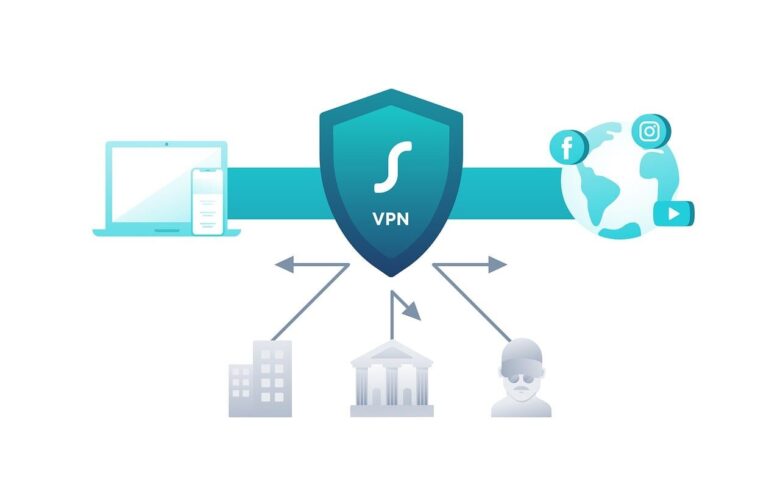
An online tool can be legitimate, useful, and still be the wrong place for a particular file. Security depends on the provider, the information involved, your account settings, the permissions granted, and the consequences of a mistake.
Online converters, document editors, automation platforms, cloud storage services, AI tools, form builders, and collaboration apps often require access to files or accounts before they can work.
The correct question is therefore not simply, “Is this website safe?” A more useful question is, “Is this tool appropriate for this information and this task?”
The uncomfortable truth: a padlock in the browser indicates that the connection is encrypted. It does not prove that the provider is trustworthy, that the file will be deleted quickly, or that your information will never be shared, retained, exposed, or misused.
A Six-Point Security Audit
Identify the provider
Check the company name, contact information, official domain, documentation, privacy policy, and whether the service has a credible history beyond anonymous advertising pages.
Classify the information
A public image and a customer contract should not receive the same treatment. Identify personal, financial, medical, legal, employee, client, or confidential business data.
Review permissions
Confirm whether the tool requests access to one file, an entire folder, email, contacts, calendar, cloud storage, or administrative settings.
Read the data rules
Look for storage location, retention period, deletion process, subprocessors, advertising use, model training, sharing, and account-closure information.
Protect the account
Use a unique password, enable multifactor authentication when available, review active sessions, and avoid signing in through links received unexpectedly.
Plan the exit
Check whether files and records can be exported, access can be revoked, connected accounts can be disconnected, and stored information can be deleted.
Match the Tool to the Risk
| Information type | Example | Reasonable approach |
|---|---|---|
| Low sensitivity | A public product image, generic icon, or document already published online | A reputable browser tool may be acceptable after checking its domain and download result |
| Internal | Draft procedure, project schedule, unpublished marketing material, or meeting notes | Use an approved business account with controlled sharing and clear retention settings |
| Confidential | Customer records, employee information, private contracts, financial details, or identification documents | Prefer an approved local or organizational tool and obtain appropriate security or privacy review |
| High consequence | Payments, legal approval, account administration, publishing, deletion, or access to critical systems | Require strong authentication, minimum permissions, human confirmation, logs, and a recovery procedure |
Before uploading a file
- Remove pages or fields the tool does not need.
- Redact unnecessary names, account numbers, addresses, and identification details.
- Keep an untouched backup of the original.
- Confirm the file type and size limits on the official page.
- Check whether files are deleted automatically or only after a manual request.
- Inspect the downloaded result before opening or sharing it widely.
Warning Signs That Deserve a Pause
Online Tool Risk Checker
Use this quick assessment before uploading a file or connecting an account. It provides general guidance and does not replace a professional security, privacy, legal, or compliance review.
Protect connected accounts too
A file may be harmless while the account connection creates the real risk. When linking email, storage, calendars, or project platforms:
- Enable multifactor authentication.
- Choose the narrowest permission scope available.
- Review connected applications periodically.
- Remove old integrations and inactive user accounts.
- Keep administrator access separate from ordinary daily use.
- Review activity logs when the service provides them.
Official Security References
The guidance below was checked against official cybersecurity and data-protection resources. Requirements vary according to the organization, country, industry, contract, and information involved.
Security Is a Suitability Decision
No online service is appropriate for every file. A simple tool may be reasonable for public material and completely unsuitable for customer records, identity documents, contracts, or administrative access.
Identify the provider, classify the information, limit permissions, protect the account, preserve a backup, and confirm how to export and delete your data before trusting the tool with important work.

The SHP Digital Atelier Editorial Team publishes practical and accessible educational content about online tools, SaaS platforms, workflow automation, file optimization, document management, productivity systems, and digital operations. Our guides focus on clear instructions, realistic limitations, responsible comparisons, and information readers should verify before choosing or implementing a digital product or service.