
Top Digital Productivity Systems Used by Professionals

web, network, industry, gears, organization, to organize, optimize, optimization, work processes, workplace, potential, efficiency, increase, productivity, automate, security, flexibility, potential, potential, efficiency, efficiency, efficiency, efficiency, efficiency, productivity

Digital productivity systems are structured ways to capture tasks, organize information, plan focused work, and keep projects moving without depending only on memory. For professionals, the real value is not in using more apps, but in building a reliable workflow that reduces confusion and makes daily decisions easier.

A strong system usually combines a few simple parts: a trusted task list, a calendar, a place for notes, a project tracker, and a review routine. When these parts work together, it becomes easier to know what needs attention today, what can wait, and what should be delegated or removed.

Many professionals use methods such as GTD, time blocking, Kanban boards, digital bullet journaling, project dashboards, and personal knowledge management. These systems can be managed with tools like Microsoft To Do, Planner, Notion, Asana, Todoist, Obsidian, Google Workspace, or similar platforms.

The best choice depends on the type of work. A freelancer may need a simple task and calendar system, while a manager may need dashboards, team assignments, and weekly reporting. A writer, analyst, or consultant may need stronger note organization and knowledge storage.

This guide explains the most useful digital productivity systems, how professionals use them in real work, when each one makes sense, and what mistakes to avoid before spending time or money on complex tools.

Important note: productivity tools often store work files, messages, deadlines, client information, and personal data. Before adopting any system, check privacy settings, access permissions, backup options, and official documentation, especially when using it for business or team collaboration.

How Digital Productivity Systems Work in Professional Environments

A digital productivity system is more than a to-do list. It is a repeatable process for deciding where work enters, how it is organized, when it gets reviewed, and how it turns into action. Without this structure, even a powerful app can become another place where tasks are forgotten.

Professionals usually deal with different types of information at the same time: meetings, emails, deadlines, client requests, research notes, internal documents, and recurring tasks. A good system separates these items into clear categories so the person does not need to rethink the same decision every day.

In practice, the best systems are usually simple at the beginning. A common mistake is trying to build a complex dashboard before understanding the workflow. The safer approach is to start with one capture inbox, one task manager, one calendar, and one weekly review routine.

System Type Best Use Main Caution
Task management system Daily actions, deadlines, reminders, and follow-ups Avoid creating too many lists without clear priorities
Calendar-based system Meetings, time blocking, deep work, and fixed commitments Do not fill every hour without leaving buffer time
Project management system Team work, client projects, launches, and multi-step processes Keep ownership and deadlines clear for every task
Knowledge management system Research, notes, ideas, processes, and reusable information Do not save everything without a review habit
AI-assisted workspace Summaries, drafting, meeting notes, and document support Always review generated output before using it professionally

GTD for Capturing and Clarifying Work

Getting Things Done, commonly called GTD, is one of the most recognized productivity systems among professionals because it focuses on removing tasks from memory and placing them into a trusted external system. Its core steps are capture, clarify, organize, reflect, and engage.

This system works well for people who receive work from many directions, such as email, meetings, chat messages, phone calls, and spontaneous ideas. Instead of trying to remember everything, the professional captures each item first and decides later whether it is actionable, reference material, delegated work, or something to delete.

In many cases, GTD becomes especially useful when a person feels busy but unclear about what matters next. The practical benefit is not just having lists. It is building the habit of turning vague items into clear next actions, such as “send contract draft to client” instead of “client project.”

  • Use one trusted inbox for new tasks and ideas.
  • Clarify each item before moving it into a project list.
  • Define the next visible action, not only the final goal.
  • Separate reference notes from tasks that require action.
  • Review open loops at least once a week.

Time Blocking for Deep Work and Better Focus

Time blocking is a calendar-based system where professionals reserve specific periods for focused work, meetings, planning, communication, and recovery. It is popular because it protects attention, which is often more valuable than simply having a long task list.

This system works best when your work requires concentration, such as writing, coding, analysis, strategy, design, studying, or preparing client deliverables. Instead of asking “What should I do next?” all day, the calendar already shows when certain types of work should happen.

A practical mistake is blocking the calendar too tightly. Real work usually includes interruptions, urgent messages, unexpected meetings, and small administrative tasks. A more realistic approach is to block important work first, then leave flexible space for communication and adjustments.

Time Block Purpose Professional Example
Deep work block Protects focused work from interruptions Writing a proposal, analyzing data, coding a feature
Admin block Groups small operational tasks Answering emails, updating invoices, organizing files
Meeting block Keeps calls from spreading across the whole day Team check-ins, client calls, project reviews
Review block Checks progress and updates priorities Weekly planning, task cleanup, goal review
Buffer block Absorbs delays and unexpected work Follow-ups, urgent edits, late responses

Kanban Boards for Visual Project Control

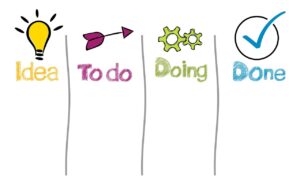
Kanban is a visual productivity system that organizes work into columns, often moving tasks from “To Do” to “In Progress” and then to “Done.” Professionals use this method because it makes workload visible and helps prevent too many tasks from being active at the same time.

This system is common in marketing teams, software teams, content production, operations, design, and client service workflows. It works especially well when tasks move through clear stages, such as briefing, production, review, approval, and delivery.

Na prática, Kanban becomes more useful when each card has enough detail to avoid confusion. A weak card says “landing page.” A useful card includes the objective, owner, deadline, files, status, and next step. This prevents unnecessary messages and repeated questions.

  1. Create clear workflow columns.

    Start with simple stages such as Backlog, To Do, In Progress, Review, and Done. Avoid creating too many columns at the beginning because the board can become difficult to maintain.

  2. Add tasks as specific cards.

    Each card should describe one clear piece of work. If a task is too large, break it into smaller cards so progress becomes easier to track.

  3. Assign an owner and deadline.

    A task without ownership can easily be ignored. Add one responsible person and a realistic due date whenever the work affects other people.

  4. Limit active work.

    Too many tasks in progress usually means slower delivery. Move fewer items at once and finish important work before starting new work.

  5. Review the board regularly.

    Use a daily or weekly review to remove outdated tasks, unblock delayed work, and confirm that priorities still match the real project goals.

Digital Bullet Journaling for Flexible Planning

Digital bullet journaling adapts the notebook-style bullet journal method into apps, tablets, note platforms, or digital planners. It is useful for professionals who want a flexible system that combines tasks, notes, meetings, reflections, and planning in one place.

The main advantage is freedom. A digital bullet journal does not force a rigid structure like some project management apps do. It can include daily logs, weekly plans, project notes, habit tracking, meeting summaries, and quick reflections.

The main risk is over-customization. Many people spend more time designing templates than actually using the system. For professional use, a simple daily log with priorities, notes, and follow-ups is usually more effective than a complex layout that takes too long to update.

  • Keep the daily page simple enough to update in minutes.
  • Use symbols or tags consistently for tasks, notes, and events.
  • Move unfinished tasks intentionally instead of copying everything automatically.
  • Create a monthly page for larger goals and deadlines.
  • Review old notes before starting a new planning cycle.

Personal Knowledge Management for Notes, Research, and Ideas

Personal knowledge management, often called PKM, is a system for saving and connecting information so it can be reused later. Professionals who write, research, manage clients, build strategies, study complex topics, or create content often need more than a basic notes app.

Tools such as Obsidian, Notion, OneNote, and similar platforms can support this type of system. The goal is not to collect endless notes. The goal is to create a useful knowledge base where ideas, references, decisions, and processes can be found again when needed.

A common problem appears when notes are saved without context. For example, a meeting note that says “update campaign” may be useless later. A stronger note includes the reason, decision, responsible person, deadline, and related project.

Note Type What to Include Why It Matters
Meeting note Decisions, owners, deadlines, and open questions Prevents confusion after the meeting ends
Research note Source, summary, useful insight, and related topic Makes information easier to reuse later
Process note Steps, tools, mistakes to avoid, and examples Helps repeat work with less friction
Client note Preferences, history, deliverables, and communication details Improves continuity and professionalism
Idea note Problem, possible solution, next test, and priority Turns random ideas into usable future actions

Project Dashboards for Teams and Client Work

Project dashboards are used by professionals who manage several tasks, people, clients, or deadlines at the same time. Instead of keeping updates across emails, chats, spreadsheets, and memory, the dashboard becomes the central place to see progress.

Tools such as Asana, Notion, Microsoft Planner, Trello, ClickUp, and similar platforms can be used for dashboards. The best setup depends on the work style, but the basic structure is usually the same: project name, owner, due date, status, files, notes, and next action.

In situations where several people depend on each other, a dashboard helps reduce hidden work. For example, if a designer is waiting for copy, the task should show that dependency clearly. Otherwise, the delay may only appear when the deadline is already close.

Dashboard Element Purpose Error to Avoid
Status field Shows whether work is planned, active, blocked, or completed Using vague labels that do not explain real progress
Owner field Clarifies who is responsible for the next step Assigning too many owners to the same task
Deadline field Creates visibility around time-sensitive work Adding dates without checking real capacity
Priority field Helps decide what should move first Marking everything as high priority
File links Connects documents, briefs, assets, and references Leaving important files buried in chat messages

AI-Assisted Productivity Systems for Modern Workflows

AI-assisted productivity systems are becoming more common because professionals now use AI to summarize meetings, draft emails, organize notes, analyze documents, and create first versions of routine content. These systems can save time, but they still require human judgment.

AI works best when the task is clear, the source material is available, and the output can be reviewed. For example, asking an AI assistant to summarize a meeting transcript or turn notes into action items is safer than asking it to make an important business decision without context.

See also  How to Build a High-Efficiency Digital Workflow for Daily Tasks

The biggest mistake is treating AI output as final. Professionals should check facts, tone, permissions, and confidential information before using AI-generated content. If the work involves legal, financial, medical, security, or sensitive business decisions, it is safer to confirm the result with a qualified person or official source.

  • Use AI for drafts, summaries, brainstorming, and organization, not blind decision-making.
  • Check whether confidential information is allowed in the tool you are using.
  • Review facts, names, numbers, dates, and recommendations before sharing output.
  • Keep human approval for important client, financial, legal, or strategic decisions.
  • Document repeatable prompts only after testing them with real examples.

Common Mistakes When Choosing a Productivity System

The most common mistake is confusing a tool with a system. A new app can look attractive, but it will not solve unclear priorities, poor planning, weak review habits, or overloaded schedules. The system must define behavior, not only storage.

Another mistake is using too many tools at once. When tasks are spread across email, sticky notes, chat messages, calendars, spreadsheets, and several apps, the professional loses trust in the system. A reliable setup needs fewer places and clearer rules.

Professionals should also avoid building a workflow that is too complex for daily use. If the system requires too much maintenance, it may work for a few days and then collapse. A simple system that gets reviewed weekly is usually better than a beautiful system that nobody updates.

Mistake Possible Consequence Better Approach
Choosing an app before defining the workflow The tool becomes messy quickly Map how work enters, moves, and gets completed first
Tracking every small detail The system becomes tiring to maintain Track only what helps decisions and execution
Not reviewing tasks weekly Old tasks hide important priorities Schedule a recurring review block
Using unclear task names Tasks require extra thinking later Write tasks as visible next actions
Ignoring permissions and privacy Sensitive information may be exposed Review sharing settings and official security documentation

When to Use Support, Training, or a Professional Consultant

Most individuals can build a basic productivity system alone. However, professional help may be useful when the workflow involves several teams, sensitive data, client operations, automation, compliance rules, or paid enterprise tools.

Support is also helpful when a tool is not syncing correctly, permissions are confusing, data appears missing, or automations are behaving unexpectedly. In these cases, guessing can create more problems, especially if the system is already being used by a team.

For companies, a consultant or operations specialist may help design naming rules, project templates, dashboards, automations, onboarding guides, and access policies. This can prevent the common problem where every department uses the same tool in a different and incompatible way.

  • Contact official support when data, billing, access, or sync problems appear.
  • Use training when a team has adopted a tool but does not use it consistently.
  • Consider a consultant when workflows involve many departments or clients.
  • Review privacy and security settings before adding sensitive business data.
  • Document internal rules so new users understand how the system works.

Conclusion

Digital productivity systems help professionals organize work, protect focus, manage projects, and reduce the mental weight of trying to remember everything. The best system is not always the most advanced one; it is the one that captures work reliably, shows priorities clearly, and gets reviewed often.

For individual work, GTD, time blocking, digital bullet journaling, and personal knowledge management can be enough. For team environments, Kanban boards, project dashboards, shared task systems, and carefully reviewed AI assistance can create more visibility and accountability.

Before choosing a tool, define the workflow, check privacy settings, test the system with real tasks, and keep the structure simple enough to maintain. If the setup involves sensitive data, complex automations, or multiple teams, confirm details in official documentation or get support from a qualified professional.

FAQ

1. What is a digital productivity system?

A digital productivity system is a structured workflow that uses digital tools to capture tasks, organize information, plan time, track projects, and review progress. It is different from simply downloading a to-do app because the system defines how work moves from idea to action. For example, a professional may capture tasks in one inbox, schedule important work on a calendar, store notes in a knowledge base, and review priorities every Friday. The tools support the system, but the habits make it reliable.

2. Which productivity system is best for professionals?

The best system depends on the type of work. GTD is useful for professionals with many incoming tasks and responsibilities. Time blocking works well for deep work and focused execution. Kanban is helpful for visual project tracking. Personal knowledge management is strong for research, writing, consulting, and learning. Team dashboards are better for managers, agencies, and departments. Instead of looking for one perfect method, choose a system that matches how your work arrives, how often priorities change, and how many people are involved.

3. Is GTD still useful for modern digital work?

Yes, GTD is still useful because modern work creates many open loops through email, chat, meetings, documents, and unexpected requests. The method helps professionals capture everything in a trusted place, clarify what each item means, organize it properly, review it regularly, and then engage with the right work. Its value is not tied to one app. It can be used with Todoist, Microsoft To Do, Notion, paper notes, or other tools, as long as the capture and review habits are consistent.

4. What is the difference between a task manager and a project management tool?

A task manager is usually designed for individual actions, reminders, recurring tasks, and personal planning. A project management tool is broader because it can include multiple people, statuses, files, dependencies, deadlines, comments, and reporting. A freelancer may use a task manager for most daily work, while a team leader may need project management software to coordinate people and deliverables. The mistake is using a complex project tool for simple personal tasks or using a basic task list for work that requires team visibility.

5. Can I use only a calendar as my productivity system?

A calendar can be the center of a productivity system, especially if your work depends on meetings, deadlines, and focused work blocks. However, a calendar alone may not be enough for notes, project details, references, or tasks that do not need a fixed time. Many professionals use the calendar for time decisions and a separate task manager for action lists. This combination is usually more flexible because not every task deserves a time block, but important work should still be protected on the calendar.

6. Are AI productivity tools safe for professional work?

AI productivity tools can be useful, but safety depends on the data, tool settings, company policies, and type of work. They are often helpful for summaries, drafts, brainstorming, and organizing information. However, professionals should avoid placing sensitive client, financial, legal, medical, or confidential company data into tools without checking permissions and privacy rules. AI output should also be reviewed because it may contain errors, outdated details, or unsupported assumptions. Treat AI as an assistant, not as the final authority.

7. How many productivity apps should I use?

Most professionals should use fewer apps than they think. A practical setup often includes one task manager, one calendar, one note system, and one project tracker if team work is involved. Using too many apps creates duplicate tasks, forgotten notes, and confusion about where information belongs. Before adding another tool, define what problem it solves. If the current system only needs a clearer review routine or better naming rules, another app may make the workflow heavier instead of better.

8. What is the best productivity system for remote teams?

Remote teams usually need a shared project system with clear ownership, deadlines, status updates, files, and communication rules. Kanban boards, project dashboards, and task-based collaboration tools work well because they reduce the need to ask for updates constantly. The system should show who owns each task, what is blocked, what is due soon, and where important files are stored. Remote teams also need regular review rituals, because even a good dashboard becomes unreliable if nobody updates it consistently.

9. What should I do if my productivity system becomes messy?

Start by cleaning the system instead of replacing it immediately. Remove old tasks, archive finished projects, merge duplicate lists, and rewrite vague tasks as clear next actions. Then check whether every item has a proper place. If tasks are scattered across many apps, choose one trusted inbox for capture. A messy system often means the review habit is missing. Set a weekly review time to update priorities, delete irrelevant items, and confirm what needs attention during the next work cycle.

10. Do professionals need personal knowledge management?

Personal knowledge management is useful when your work depends on information that must be reused later. Writers, consultants, managers, researchers, students, analysts, marketers, and product professionals often benefit from a structured note system. It helps store ideas, meeting decisions, research, processes, and lessons learned. However, it should not become a place where everything is saved without purpose. A good knowledge system makes important information easier to find, connect, and apply in real work.

11. Should I pay for a productivity tool?

Paying for a productivity tool makes sense when the paid features solve a real limitation, such as team permissions, automations, advanced search, integrations, larger storage, calendar sync, or security controls. For personal use, many free plans are enough to start. Before paying, test the workflow with real tasks for at least a short period and confirm that the tool is actually being used. Avoid paying only because a template, dashboard, or app looks impressive. The system must improve execution, not only organization.

12. How can I build a simple productivity system from zero?

Start with four parts: capture, plan, execute, and review. Choose one place to capture tasks and ideas. Use a calendar for meetings and focused work. Create simple project lists for active responsibilities. Then schedule a weekly review to clean the system and choose priorities. Avoid advanced automations, complex dashboards, and too many categories at the beginning. Once the basic system becomes reliable, add improvements slowly, such as templates, tags, shared boards, or AI assistance.

Editorial note: this article is educational and should be adapted to each professional context. When productivity tools involve sensitive work data, client information, company accounts, billing, or team permissions, confirm details in official documentation and follow your organization’s internal policies.

Official References